Parenting in a Digital World Tips
Technology is constantly evolving, and so are the challenges of keeping kids safe and responsible online. Beginning with the Wave Watch 9/21 Issue, Hermosa Schools will share practical Parenting in a Digital World Tips to help families navigate devices, apps, and digital habits with confidence.
From parental control guides to family media agreements, these resources are designed to make conversations about technology easier at home and to empower parents with tools that support healthy, mindful digital use.
Review the featured tips below and check back regularly for more ways to keep your family’s digital life safe, positive, and connected.
Tip #1: Parental Control Wizard
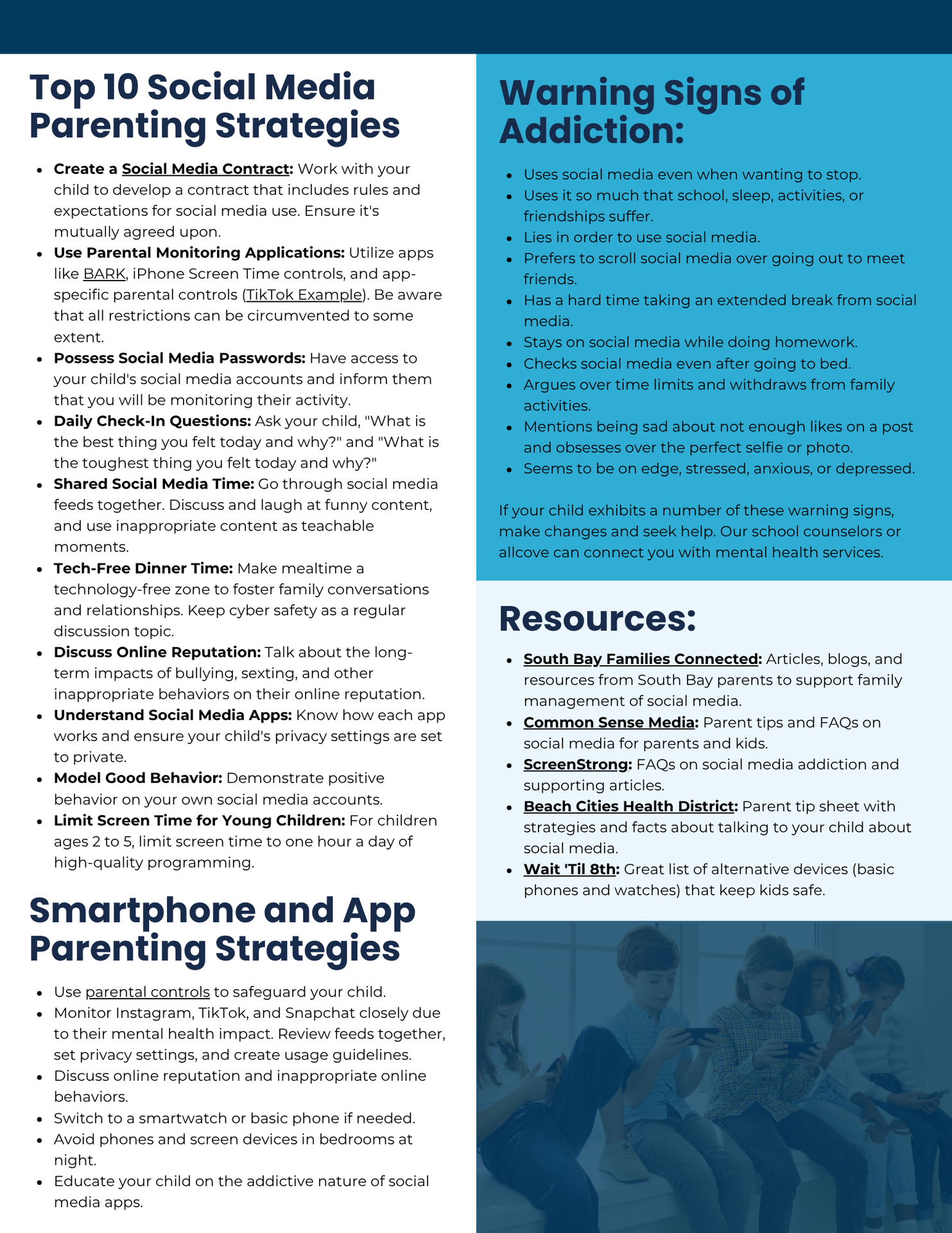
We highly recommend utilizing the Cyber Safety Wizard to receive customized resources for navigating online parental controls. You just answer a few questions about the types of devices your child uses, what apps they use, and how they access the internet, and it will produce an email with a comprehensive guide on how to set up the controls on each of the apps and devices. Visit the Hermosa Schools Social Media Resource.
Tip #2: Family Media Agreements - Keeping Kids Safe Online
As technology becomes part of our children’s daily lives, setting clear expectations around media use is essential. A Family Media Agreement helps establish healthy boundaries, encourages open conversations, and promotes safe, responsible online behavior.
A family agreement can help keep kids safe by:
- Setting clear limits on screen time and device use
- Encouraging respectful and kind online interactions
- Teaching kids how to recognize and respond to unsafe situations
We encourage families to review and personalize the Common Sense Media Family Media Agreement together at home.
Tip #3: Blocking Websites
This tip comes from Common Sense Media.
If you just want to limit what your kids can search for, your best option is to enable Google SafeSearch in whichever browser or browsers you use. First, you need to make sure your browsers use Google as their default search engine, and then you need to turn on SafeSearch. This is a good precaution to take as soon as your kids start going online and you want to make sure they don't accidentally stumble across something yucky.
Tip #4: Blocking Websites and Filter Content
This tip comes from Common Sense Media.
If you want to prevent access to specific websites and limit your kid's exposure to inappropriate content, such as mature games or yucky material, you can use the parental controls that are built into your device's operating system. Every major operating system -- Microsoft's Windows, Apple's Mac OS, and even Amazon's Fire -- offers settings to keep kids from accessing stuff you don't want them to see. To get the benefits, you need to use the most updated version of the operating system, and each user has to log in under his or her profile. The settings apply globally to everything the computer accesses. Each works differently and has its own pros and cons. This is the best solution if your kids are younger and are primarily using a home device. Check out each one's features: Microsoft, Apple, and Amazon.
Tip #5: Blocking Websites, Filtering Content, Imposing Time Limits, and Seeing What Kids are Doing
This tip comes from Common Sense Media.
A full-featured, third-party parental control service such as Bark, Qustodio, or Net Nanny will give you a lot of control over all of your kid's devices (the ones they use at home as well as their phones). These can be pricey (especially if you have several kids to monitor), but the cost includes constant device monitoring, offering you visibility into how kids are using their devices. These parental controls can only keep track of accounts that they know your kid is using, and for some apps, you'll need your kid's password in order to monitor activity. If your kid creates a brand-new profile on Instagram using a friend's computer without telling you, for example, the parental controls won't cover that account.
How do I monitor my child’s phone? To keep tabs on your tween or teen's phone, your best bet is to download an app to monitor text messages, social networks, emails, and other mobile functions -- try Bark, Aura, or WebWatcher. These are especially helpful if you're concerned about potentially risky conversations or iffy topics your kid might be engaging in. Bark, for example, notifies you when it detects "alert" words, such as "drugs." To monitor social media, you'll need your kid's account information, including passwords. (NOTE: Create a rule in your family contract regarding hidden accounts.)
Tip #6: Mastering Screen Time
This tip comes from the Cyber Safety Cop.
One highly recommended resource for parents is the podcast episode Mastering Screen Time: Effective Parenting Strategies from ‘Screen Time Standoff.' In this 30-minute episode, listeners can learn practical communication strategies for discussing screen time with their children without the battle. The episode offers useful tips on navigating resistance and provides actionable ideas to help families establish healthier screen time habits. It's part of the Deep Dive into Parenting Podcast by the Cyber Safety Cop and is also available on Apple Podcasts.
Tip #7: Managing Devices
This tip comes from Common Sense Media.
There are both hardware and software solutions to control your home network and your home Wi-Fi. A popular one is OpenDNS, a download that works with your existing router (the device that brings the internet into your home) to filter internet content. Some internet service providers, such as Comcast and Verizon, offer parental control features that apply to all devices on the network, too. Network solutions can work for families with kids of different ages; however, mucking around in your network and Wi-Fi settings can be challenging, and the controls may not apply when kids are on a different network.
Tip #8: Can I set parental controls in specific apps, such as Snapchat and TikTok?
This tip comes from Common Sense Media.
In addition to blocking specific people, most social media apps let you disable features that could pose some risks for kids. For example, you may be able to turn off chat, restrict conversation to friends only, and hide your child's profile so that it won't show up in search results. Some apps go a step further by letting users control their own use of the app. Instagram's Your Activity feature, for example, shows you how much time you've spent in the app and lets you set limits for yourself. YouTube has a similar feature that reminds users to take a break. TikTok even allows parents to set limits and remotely manage their kids' TikTok account from their phone using its Family Pairing feature. To find out if your kids' favorite apps offer any types of restrictions, go to the app's settings section (usually represented by the gear icon). Unless an app offers passcode protection for its settings (and most don't), your kid can easily reverse them.
Tip #9: Talking to Your Teens About Online Gambling
This tip comes from Parenting Teens & Tweens.
Teen online gambling may not be on your parenting radar, but it should be. New laws, aggressive social media advertising, and tech loopholes are making it easily accessible to adolescents. Check out this article from Parenting Teens & Tweens to learn about a growing concern regarding online gambling.
Tip #10: Balancing Social Media and Teen Well-Being
This tip comes from Common Sense Media.
We encourage parents and guardians to read “How to Help Teens Manage the Effects of Social Media on Their Mental Health.” This article offers four practical tips for families on balancing the risks and rewards of online communities and supporting healthy digital habits.
Tip #11: Parents' Ultimate Guide: How to Set Parent Controls On Roblox
This tip comes from Common Sense Media.
Roblox is a massive online platform where users—kids and adults alike—play, create, and share millions of mini-games, called "experiences." This virtual playground is where players use Lego-style characters to role-play adopting pets, solving mysteries, going to school, and much more. With over 7.5 million daily players—including 40 million under age 13—Roblox has become a big part of kids' lives online. With such an expansive digital world to play in, it's important to set up age-appropriate parental controls. However, even with strictly enforced guardrails, it's difficult to fully protect against the most harmful content, given all the user-generated content. Check out our full review of Roblox for more information on how kids use the platform. Want to know what to watch out for and how to set parental controls? Read the rest of the article.
Tip #12: Digital Citizenship and Family Media Plans
This tip comes from the Beach Cities Health District - Youth Tech.
Digital Media is part of everyday life for children and teens, offering opportunities to learn, connect, and create, while also presenting challenges such as distraction, privacy concerns, and social pressure. Families can support healthy technology habits by creating a Family Media Plan together that sets clear expectations for screen time, content, and device use, and by having regular, open conversations about digital citizenship. Talking with children about how to be safe, respectful, and responsible online, modeling positive screen habits as adults, and revisiting expectations as children grow helps build trust and balance while empowering students to make thoughtful choices in digital spaces.
Tip #13: Cyber Safety Checklist
This tip comes from the Cyber Safety Cop.
A big thank you to all of our families and community members who attended our Parenting in the Digital World Parent Talk last Thursday night. If you were unable to attend, we encourage you to review the Cyber Safety Cop Family Resources below:
These resources offer practical guidance to help your family stay safe in today's digital world.
Tip #14: Screen Time Considerations
A new report released this week by the American Academy of Pediatrics shares the findings of a study that looked at nearly 300,000 children around the world. The study revealed a two-way link between the amount of screen time to their emotional and social well-being, including aggression, anxiety, and low self-esteem. Please check out the resources provided by the Cyber Safety Cop for ways to support limiting and monitoring screen time for your child.
Tip #15: Social Media Guide for Parents and Carers
This tip comes from Internet Matters.
Social media is a key part of how teens connect, learn, and express themselves, but it comes with risks like cyberbullying, exposure to harmful content, and mental health challenges. Learn more about how to parent social media usage by reviewing the Social Media Guide for Parents and Carers.
Tip #16: Build AI Literacy at Home
This tip comes from Common Sense Education.
What is AI? A guide for parents - Watch this short video and access an activity guide for talking to your kids about AI. For middle school-aged students ready to start high school, we particularly like the conversation cards and scavenger hunts.
Tip #17: Common Sense Carpool Conversations
This tip comes from Common Sense Media.
Oftentimes, finding dedicated time to talk with your child about issues that matter most in their digital lives can be challenging. That’s why we highly recommend Common Sense Carpool Conversations. These short, digestible podcasts can be enjoyed with your child during your commute, waiting in line, or even out on a walk. The purpose of the podcast is to start discussions in fun, authentic ways and to encourage sharing. The podcast series is divided by age group - a series for grades K-2, 3-5, 6-8, and 9-12, touching on topics most relevant to that age group. You can access the series from their webpage or on YouTube.
Tip #18: Parents’ Ultimate Guides
This tip comes from Common Sense Media.
From apps and games to social media and streaming platforms, the Parents’ Ultimate Guides are here to help you navigate your kid’s digital world. It breaks down how their favorite tech works, tackles common challenges like screen time and social media anxiety, and offers practical tips for thoughtful conversations—all so you can make informed decisions that work for your family.
Tip #19: A Tool for Limiting Screen Time
One way families can help manage and reduce screen time at home is by using tools like Bark, a parental control app designed to help parents set healthy digital boundaries. Bark allows parents to create screen-time schedules, block specific apps or websites, and even pause internet access on a child’s device when it’s time to focus on homework, family time, or sleep. It can also monitor texts and social media activity and alert parents if concerning content appears, helping families support safe and balanced technology use. If you’re interested in learning more about how Bark can help your family manage screen time and support online safety, you can explore their parent guide.
Tip #20: Managing Minecraft
This tip comes from Common Sense Media.
Minecraft's open-ended nature with no built-in stopping points makes time management especially challenging. It's easy for kids of all ages to lose track of how long they've been playing, which often creates a struggle to transition away from the game because there's always "just one more thing" to do. Check out this Parents’ Ultimate Guide to Minecraft.
Tip #21: Parents’ Ultimate Guide: How to Set Parent Controls on Roblox
This tip comes from Common Sense Media.
Roblox is a massive online platform where users—kids and adults alike—play, create, and share millions of mini-games, called "experiences." This virtual playground is where players use Lego-style characters to role-play adopting pets, solving mysteries, going to school, and much more. With over 7.5 million daily players—including 40 million under age 13—Roblox has become a big part of kids' lives online. With such an expansive digital world to play in, it's important to set up age-appropriate parental controls. Learn what to watch out for and how to set parental controls.
Tip #22: Parents’ Ultimate Guide: Sharenting Slip-Ups
This tip comes from Common Sense Media.
Learn with your child how to protect their digital identity and the importance of asking for permission to share. Read this article for more information.
Tip #23: Parents’ Ultimate Guide: Emotional Growth vs. Screen Dependence
This tip comes from the American Academy of Pediatrics.
Dealing with child fussing, tantruming, and negative emotions is hard, and it’s normal to want a break. But when children’s emotions are frequently managed with screens, they have more emotional problems in the long-term. Check out this infographic from the American Academy of Pediatrics for tips for helping your child learn to self-regulate their emotions.
Tip #24: Parents’ Ultimate Guide: Two Truths & AI
This tip comes from Common Sense Media.
Can your kid spot what’s real and what’s AI? Two Truths & AI is a fast-paced game where families work together to spot AI-generated images. In just 60 seconds, you'll look at three movie posters and figure out which one is fake. It's designed to be fun, but it's also helping your kids build a skill they'll use every day: knowing what's real online.
Resources: